
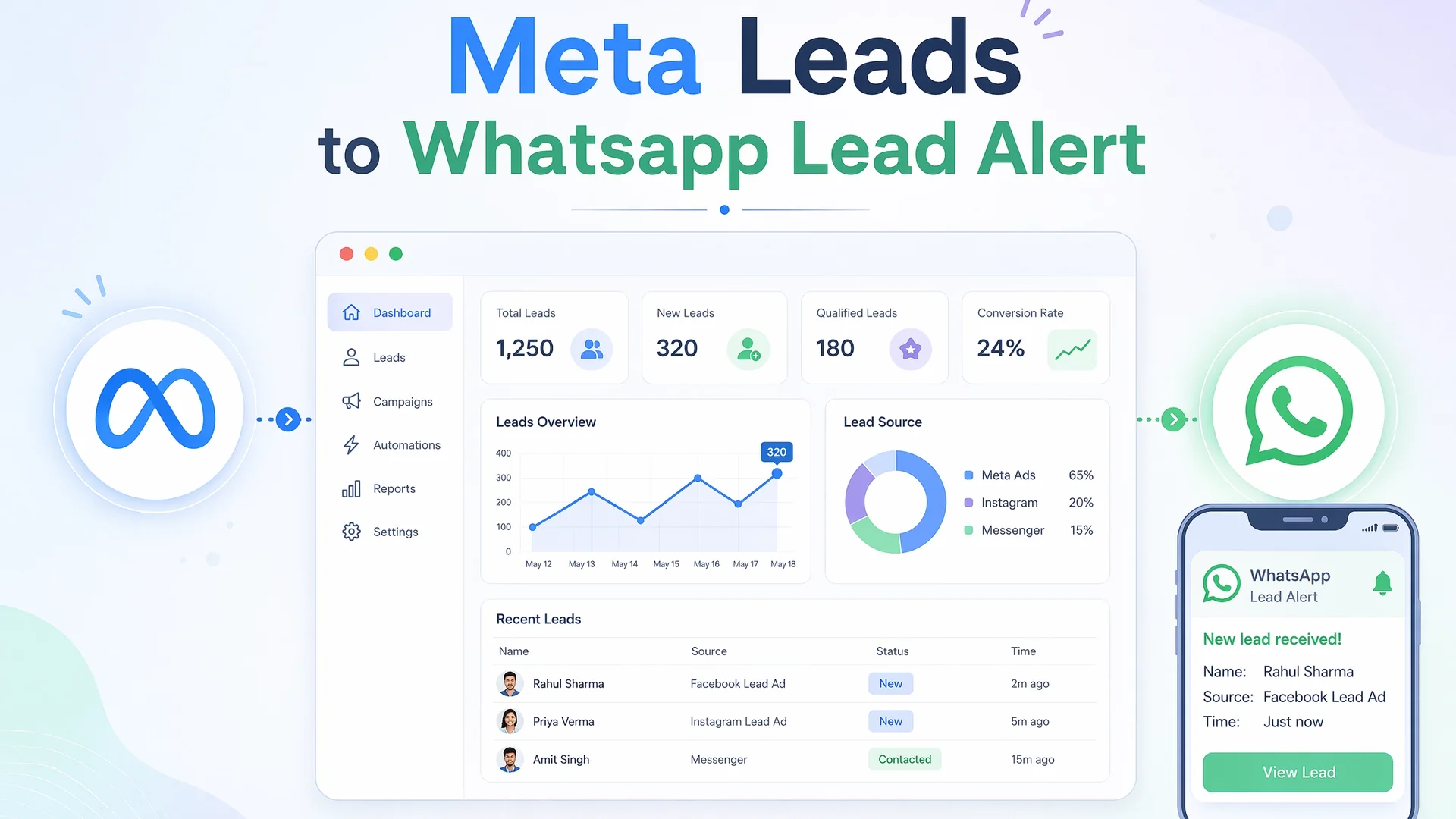
I was spending the first thirty minutes of every morning copy-pasting Meta lead forms into a WhatsApp group. We did not have a CRM. The sales team worked on phone calls and WhatsApp. The marketing team ran instant forms because they converted better than landing pages. The gap between those two worlds was me, a spreadsheet, and a lot of Ctrl+C.
The obvious answer was to plug in a tool. Zapier, Make, Pabbly Connect, one of the Indian WhatsApp BSPs. They all do this. They also all want a monthly fee, add another vendor to debug, and still leave you manually mapping fields every time the form changes. For a small team that just wants a lead to reach a sales rep fast, that stack is overkill.
The setup I ended up with is simpler. Meta's native Forms-to-Sheets connector drops every lead into a Google Sheet. A container-bound Google Apps Script watches for new rows and sends a WhatsApp template alert to the sales team within seconds. No middleware. No subscription. Just Meta, Sheets, and the WhatsApp Cloud API.
This post is how to build that pipeline end to end, including the WhatsApp Cloud API setup that most tutorials skip.
What every guide gets wrong
Most articles on this topic fall into one of two traps. Either they show you how to connect Facebook Lead Ads to Google Sheets and stop there, leaving you with a spreadsheet and no action. Or they jump straight to a third-party automation tool and pretend that is the only way to get to WhatsApp.
Neither is right for a small sales team. The native connector is more capable than people think. It does not just dump form fields. It also passes ad_name, adset_name, campaign_name, form_id, platform, and is_organic. In many configurations it also passes the leadgen_id, sometimes shown as an id column prefixed with l:. That ID is the key to everything else.
The second trap is treating WhatsApp as an afterthought. You cannot just call a phone number and send whatever text you want. The WhatsApp Cloud API requires a verified business, a registered phone number, an approved message template, and a permanent access token. Guides that gloss over this leave you stuck at the first 400 Bad Request.
The architecture
Meta instant form submit
  → Meta native Forms-to-Sheets connector
  → Google Sheet
  → Google Apps Script onChange trigger
  → WhatsApp Cloud API message
  → Sales team WhatsApp
Later, the same leadgen_id stored in the sheet lets you send QualifiedLead, Schedule, or Purchase events back to Meta through CAPI. The alert pipeline and the optimization pipeline share one piece of data.
Connect Meta Lead Ads to Google Sheets
In Meta Business Suite or Ads Manager, go to Forms / Lead Ads Forms and open the CRM Setup tab. Select Google Sheets as the CRM, authorize your Google account, paste the spreadsheet URL, and choose the form.
Meta sends a test lead. A new row appears in the sheet. The connector adds a lead_status column and asks you to change the value from CREATED to something else, then confirm. This proves the connection can write both ways.
Once live, every new lead lands as a row. Verify your sheet includes an id column. If you see values like l:1567669440983108, you have the leadgen_id. If not, your configuration may not export it, and you should switch to a webhook + Graph API ingestion path instead. Without leadgen_id, your future CAPI match rate falls from near-perfect to roughly fifty to sixty-five percent.
Set up WhatsApp Cloud API
This is the part that trips people up. You need six things before you can send a single production message.
A verified Meta Business Manager. Create or use an existing business portfolio at business.facebook.com and complete business verification. In India, this typically takes one to five business days. Keep your legal business name, website footer, and submitted documents consistent.
A Meta Developer app. At developers.facebook.com, create a Business-type app and add the WhatsApp product. Link it to your verified business portfolio.
A WhatsApp Business Account. Created automatically when you add the WhatsApp product. Set a display name that matches your brand. Generic names like "Customer Service" get rejected.
A dedicated phone number. It cannot be active on WhatsApp Messenger or WhatsApp Business App at the time of registration. Verify it via SMS or voice OTP. For production, do not use Meta's test number.
Billing. Add a payment method in Business Settings → Payments. Without this, message sends fail with billing eligibility errors.
A permanent access token. Do not use the twenty-four-hour temporary token from the developer dashboard. Create a System User in Business Manager → Users → System Users with Admin role. Assign it your WhatsApp Business Account and your app with Full Control. Generate a token with these permissions:
whatsapp_business_messagingwhatsapp_business_management
This token does not expire. Treat it like a password.
Create the lead alert template
Outbound WhatsApp messages to users who have not replied in the last twenty-four hours must use a pre-approved template. Create one in WhatsApp Manager → Message Templates.
For a lead alert, use the Utility category. A body like this works:
New lead alert

Name: {{1}}
Phone: {{2}}
Email: {{3}}
City: {{4}}
Requirement: {{5}}
Campaign: {{6}}
Submit it for approval. Utility templates usually approve within minutes to a few hours. Marketing templates take longer and face stricter review.
Build the Apps Script trigger
Open the Google Sheet and go to Extensions → Apps Script. This creates a container-bound script.
Set up two triggers:
onChangefires when the connector inserts a new row.- A time-based trigger every five minutes catches anything the onChange misses.
The core function reads new rows, builds a lead object, and calls the WhatsApp sender. Here is the shape:
function scanNewRows(ss) {
  const sheet = ss.getSheetByName('Leads');
  const props = PropertiesService.getScriptProperties();
  const lastRow = parseInt(props.getProperty('lastProcessedRow') || '1');
  const currentRow = sheet.getLastRow();

  if (currentRow <= lastRow) return;

  const headers = sheet.getRange(1, 1, 1, sheet.getLastColumn()).getValues()[0];
  const rows = sheet.getRange(lastRow + 1, 1, currentRow - lastRow, sheet.getLastColumn()).getValues();

  rows.forEach(row => {
    const lead = {};
    headers.forEach((header, i) => lead[header] = row[i] || '');
    sendWhatsAppAlert(lead);
  });

  props.setProperty('lastProcessedRow', currentRow.toString());
}
And the sender:
function sendWhatsAppAlert(lead) {
  const url = 'https://graph.facebook.com/v25.0/' + PHONE_NUMBER_ID + '/messages';

  const payload = {
    messaging_product: 'whatsapp',
    to: RECIPIENT_PHONE,
    type: 'template',
    template: {
      name: 'internal_lead_alert',
      language: { code: 'en' },
      components: [{
        type: 'body',
        parameters: [
          { type: 'text', text: lead.name || 'Unknown' },
          { type: 'text', text: lead.phone || 'Not provided' },
          { type: 'text', text: lead.email || 'Not provided' },
          { type: 'text', text: lead.preferredCity || 'Not specified' },
          { type: 'text', text: lead.requirement || 'Not specified' },
          { type: 'text', text: lead.campaign_name || 'Not specified' }
        ]
      }]
    }
  };

  const options = {
    method: 'post',
    contentType: 'application/json',
    headers: { Authorization: 'Bearer ' + WHATSAPP_TOKEN },
    payload: JSON.stringify(payload),
    muteHttpExceptions: true
  };

  const response = UrlFetchApp.fetch(url, options);
  Logger.log('WhatsApp response: ' + response.getContentText());
}
The race condition that breaks first-time builders
Meta's connector writes the row structure first, then fills the cell values. If your onChange trigger reads immediately, it sees an empty row, skips it, and advances the baseline. That lead is now permanently ignored.
The fix is a short sleep at the top of the trigger:
function onChange(e) {
  Utilities.sleep(5000);
  scanNewRows(e.source);
}
Five seconds is enough in practice. Without it, you will lose leads silently.
Send the WhatsApp alert
The WhatsApp Cloud API endpoint is:
POST https://graph.facebook.com/v25.0/{PHONE_NUMBER_ID}/messages
The request needs an Authorization: Bearer {TOKEN} header and a JSON body. For a template message, the payload looks like this:
{
  "messaging_product": "whatsapp",
  "to": "919XXXXXXXXX",
  "type": "template",
  "template": {
    "name": "internal_lead_alert",
    "language": { "code": "en" },
    "components": [{
      "type": "body",
      "parameters": [
        { "type": "text", "text": "Rahul Sharma" },
        { "type": "text", "text": "+91 99999 99999" },
        { "type": "text", "text": "rahul@example.com" },
        { "type": "text", "text": "Balewadi" },
        { "type": "text", "text": "Private office, 21-40 seats" },
        { "type": "text", "text": "Pune_Lead_Demand_Gen" }
      ]
    }]
  }
}
In Apps Script, UrlFetchApp.fetch does the POST. Map each sheet column to the corresponding template variable. Log every response. If a send fails, you want to know before the sales team starts asking why they missed a lead.
The breakage I did not see coming
After a week of smooth operation, the alerts stopped. New leads were landing in the sheet, but no WhatsApp messages went out.
The logs showed lastProcessedRow was ahead of the actual last row. Something had advanced the baseline during a failed run. The fix was a checkBaseline() helper that compares the stored baseline to the sheet's real last row, and a setBaseline() helper that resets it to the current last row when needed.
This is why a polling safety trigger matters. The onChange trigger is fast, but it is fragile. The five-minute poll catches the leads that onChange misses and gives you a second chance to fix the baseline before you lose data.
Close the loop with CAPI
The leadgen_id in your sheet is what makes this more than an alert system. When the sales team marks a lead as qualified, or books a meeting, or closes a deal, you can send that event back to Meta through the Conversions API with the same leadgen_id.
Meta matches the event to the original ad interaction. Match rate with leadgen_id is near one hundred percent. Match rate with hashed email and phone alone is roughly fifty to sixty-five percent.
This turns your alert pipeline into a feedback loop. Meta stops optimizing for cheap form fills and starts optimizing for the outcomes your sales team actually reports.
What I would do differently on day one
If I were building this again from scratch, I would verify the id column is present before writing a single line of script. I would create the WhatsApp template first, before building the sender, because template approval is the longest step and the easiest to forget. I would add the five-second sleep before the first test, not after losing a real lead. And I would write the baseline check helpers on day one, not day seven after the alerts went quiet.
The whole guide would fit on one page: connect the form, verify the ID, set up WhatsApp, write a script with a delay and a poll, and keep the leadgen_id for CAPI later.
Cost reality for India
As of mid-2026, Meta charges per delivered template message in India. Utility messages cost roughly INR 0.16 each. Marketing templates cost roughly INR 0.88. Service replies inside a twenty-four-hour customer-initiated window are free. For a small sales team getting fifty to a hundred leads a day, the monthly WhatsApp bill is a fraction of what a paid automation tool would charge.
There is no CRM in this stack. There is no monthly middleware subscription. There is just the sheet, the script, and WhatsApp. For teams that sell on phone calls and WhatsApp, that is exactly enough.

Written by
Dan Antony
I have spent 11 years building marketing teams and infrastructure from scratch — from a $1.5M B2B SaaS budget to leading two brands across India and Singapore. I write about Meta Ads, Google Ads, SEO, and the MarTech stack that actually moves the needle.