
Streamlining the Start
I use JupyterLab daily ever since I discovered all the things I can automate using code. But this isn’t a regular part of my day, between google ads, various ad platforms, organic dashboards and crm workflows it’s not always easy for me to snap back to remembering all the things I need to do to keep my notebooks, scripts and the micro tools i create to be organized and the last thing I want is to find the 15 different final versions of a script i’ve been working on which i didn’t bother naming properly and ofcourse this can all be solved with a little discipline but it’s something that i’m cultivating but a little help can go a long way.
So while I’m doing something else, I don’t want to stop and think through cd, venv, start notebooks. I just want to open the right folder and keep moving and i don’t want to cd, venv, start notebooks navigate to the right folder and make sure my files are saved in the right place. I just decided to make a simple command to do just that and to help me jump in easily.
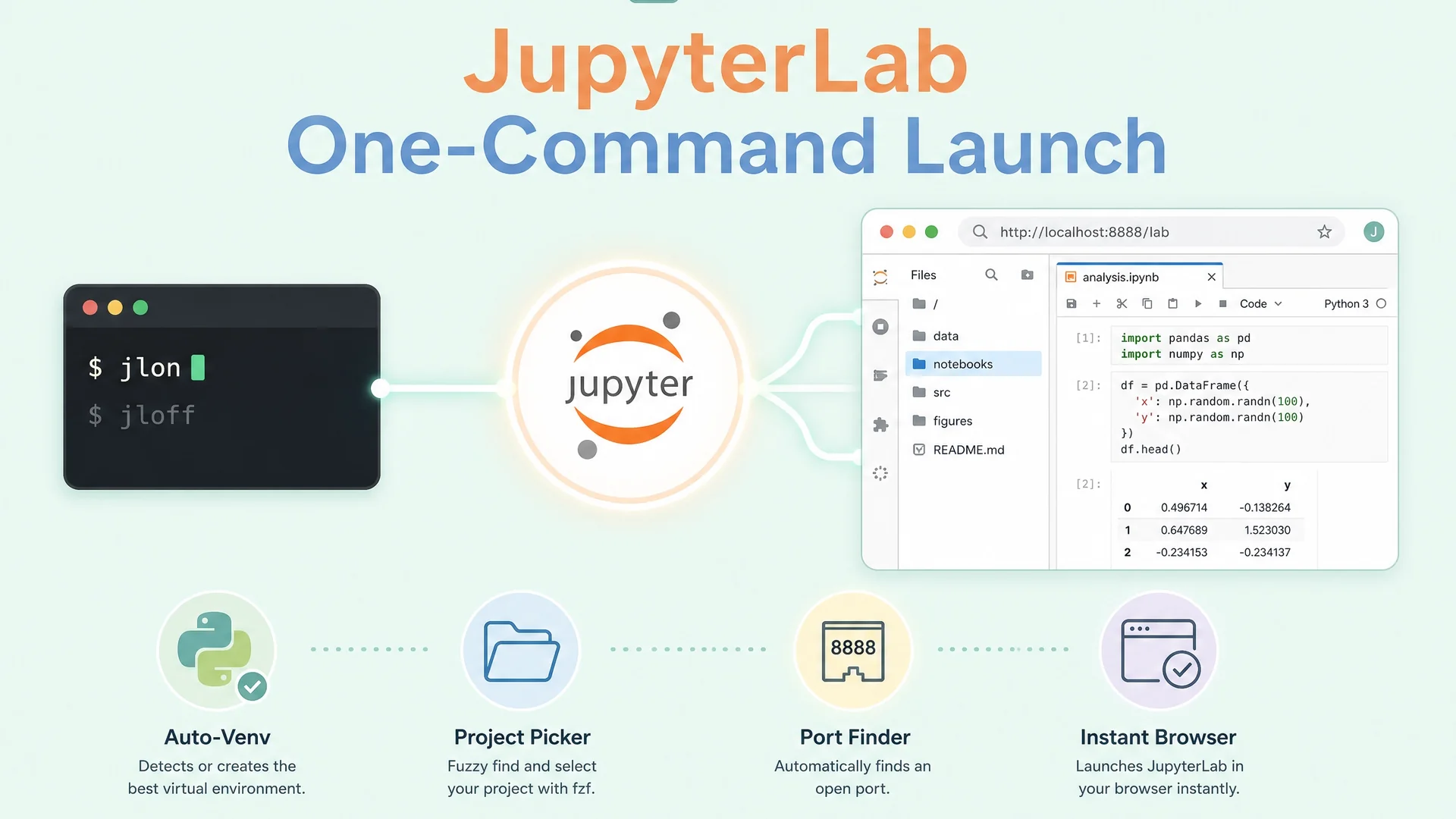
I didn’t want to make things complicated or type an extremely long command jlon is easy to remember does exactly what it says “JyupterLabs On”, One command opens JupyterLab in the correct folder, activates your environment, and spins up the server automatically. asks me which folder I want to start from and opens the browser.
The jlon Command
Here is what happens, step by step:
Activates my Python virtual environment from
~/Documents/projects/jl/bin/activateso the right dependencies load every time.Uses fzf to let me pick the project folder, for example
notebooks,scripts,checkers, orcron.Checks for a free port between 8888 and 8899 so it does not collide with another Jupyter server.
Starts JupyterLab in the background with
nohupand writes output to~/.jupyterlab.log.Reads the correct tokenized URL from
jupyter server listand opens it withopenon macOS.Saves the process ID in
~/.jupyterlab.pidsojloffcan stop the exact server later.
Setup: Add the Command to Your Shell
Copy the block below into your ~/.zprofile or ~/.zshrc. Reload your shell with source ~/.zprofile or restart Terminal. The comments explain each step so you can adjust paths and behavior without guessing.
Prerequisites:
Python with JupyterLab installed
fzfinstalled with Homebrew (brew install fzf)Your virtual environment at
~/Documents/projects/jl/bin/activateor update the path in the script
# JupyterLab quick launcher and stopper
# Author: Dan Antony
# macOS Sequoia | zsh

# Paths
export JL_LOG_FILE="$HOME/.jupyterlab.log" # last launch output
export JL_PID_FILE="$HOME/.jupyterlab.pid" # PID for clean stop

# Start JupyterLab
jupyter_lab_launch() {
 # 1. Activate Python environment
 local VENV_ACT="$HOME/Documents/projects/jl/bin/activate"
 if [[ -f "$VENV_ACT" ]]; then
 source "$VENV_ACT"
 else
 echo "Virtual environment not found at $VENV_ACT"
 fi

 # 2. Choose project folder
 local base="$HOME/Documents/projects"
 local folders=(notebooks scripts checkers cron)
 local existing=()
 local f
 for f in "${folders[@]}"; do
 [[ -d "$base/$f" ]] && existing+=("$f")
 done
 if [[ ${#existing[@]} -eq 0 ]]; then
 mkdir -p "$base/notebooks"
 existing=("notebooks")
 fi
 local selected=""
 if command -v fzf >/dev/null 2>&1; then
 selected="$(printf "%s\n" "${existing[@]}" | fzf --prompt='Select folder: ')"
 fi
 selected=${selected:-notebooks}
 cd "$base/$selected" || { echo "Cannot access folder $base/$selected"; return 1; }

 # 3. Find open port 8888-8899
 local port=""
 local p
 for p in {8888..8899}; do
 if ! lsof -iTCP:"$p" -sTCP:LISTEN -nP >/dev/null 2>&1; then
 port="$p"
 break
 fi
 done
 if [[ -z "$port" ]]; then
 echo "No open port found in 8888 to 8899"
 return 1
 fi

 # 4. Launch JupyterLab in background
 if ! command -v jupyter >/dev/null 2>&1; then
 echo "jupyter is not in PATH"
 return 1
 fi
 : > "$JL_LOG_FILE"
 nohup jupyter lab --notebook-dir="$PWD" --port="$port" --no-browser >"$JL_LOG_FILE" 2>&1 &
 local pid=$!
 echo "$pid" > "$JL_PID_FILE"
 echo "Started JupyterLab (PID $pid) in $PWD on port $port"

 # 5. Find tokenized URL for this directory
 local url=""
 local i
 for i in {1..24}; do
 sleep 0.5
 url="$(jupyter server list 2>/dev/null | awk -v here="$PWD" -F ' :: ' 'NF==2{u=$1;r=$2;if(r==here){print u;exit}}')"
 [[ -n "$url" ]] && break
 done
 [[ -z "$url" ]] && url="$(jupyter server list 2>/dev/null | awk 'NR==1{print $1}')"

 if [[ -n "$url" ]]; then
 echo "Opening $url"
 open "$url"
 else
 echo "Could not detect server URL. Check $JL_LOG_FILE"
 fi
}

# Stop JupyterLab
jupyter_lab_stop() {
 local pid=""
 if [[ -f "$JL_PID_FILE" ]]; then
 pid="$(cat "$JL_PID_FILE")"
 fi
 if [[ -n "$pid" && $(ps -p "$pid" -o pid=) ]]; then
 echo "Stopping JupyterLab (PID $pid)"
 kill "$pid" && sleep 1
 if ps -p "$pid" >/dev/null; then
 kill -9 "$pid"
 fi
 else
 pkill -f jupyter-lab
 fi
 rm -f "$JL_PID_FILE"
}

# Aliases
alias jlon="jupyter_lab_launch"
alias jloff="jupyter_lab_stop"
alias jlst="jupyter server list"
alias jllog="tail -n 100 $JL_LOG_FILE"
For Clarity:
fzf: a terminal fuzzy finder. You type a few letters and it filters the list. Install it with
brew install fzf.nohup: runs a command so it keeps going even if you close the terminal. We use it so JupyterLab does not die when the tab closes.
lsof: lists open files and listening ports. We use it to find a free port.
open: macOS command that opens a URL in your default browser.
PID file: a small file that stores the process ID so you can stop the right server later.
tokenized URL: Jupyter includes a token in the URL for auth. We do not parse logs. We ask
jupyter server listfor the current URL.
How to use it:
Paste the script into
~/.zprofileor~/.zshrcand reload your shell.In any terminal window, run
jlon. Pick a folder when prompted.Your browser opens to JupyterLab for that folder. When done, run
jloff.
Example Run
$ jlon
Select folder: scripts
Started JupyterLab (PID 19321) on port 8888
Opening: http://localhost:8888/?token=bb7e123abcd...

$ jloff
Stopping JupyterLab (PID 19321)...
Every time you use it, Jupyter opens exactly where you left off, organized, activated, and ready to go.
The best shortcuts are not flashy. They just disappear into your workflow. jlon turned a multi-step start into a single, predictable command. That is all I needed.

Written by
Dan Antony
I have spent 11 years building marketing teams and infrastructure from scratch — from a $1.5M B2B SaaS budget to leading two brands across India and Singapore. I write about Meta Ads, Google Ads, SEO, and the MarTech stack that actually moves the needle.